Hello everyone!!
I am trying to show in the output of an OPEN SOURCE INTEGRATION NODE (SAS Enterprise Miner 14.3) a graph I create in R.
For example, I designed a toy dataset and the graph I would like to see in SAS Enterprise Miner.
R Script:
set.seed(12345)

# Populating a dataset:
data <- data.frame(x = rnorm(n=100, mean = 0, sd = 1),
                   y = rnorm(n=100, mean = 0, sd = 1))


# The graph I want to display in SAS Enterprise Miner:
plot(data$x, data$y,
     main = 'A simple ScattePlot',
     xlab = 'Rand sample x',
     ylab = 'Rand sample y')
And the expected graph I would obtain:
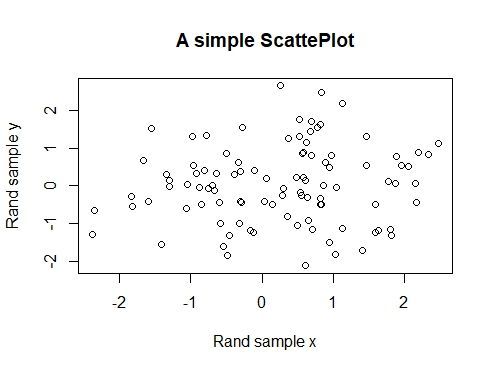 Expected graph (R Environment)
SAS ENTERPRISE MINER (version 14.3):
I put an Open Source Integration Node, set the OUTPUT MODE to NONE, put the same R code (above) as shown here:
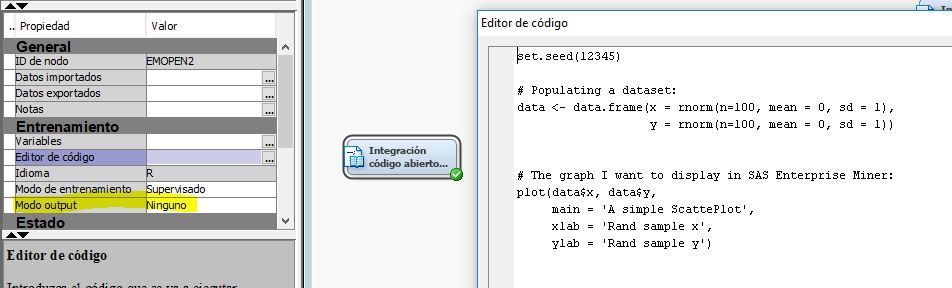 Output Mode = NONE
After running the node, I can't see the graph I expected to see:
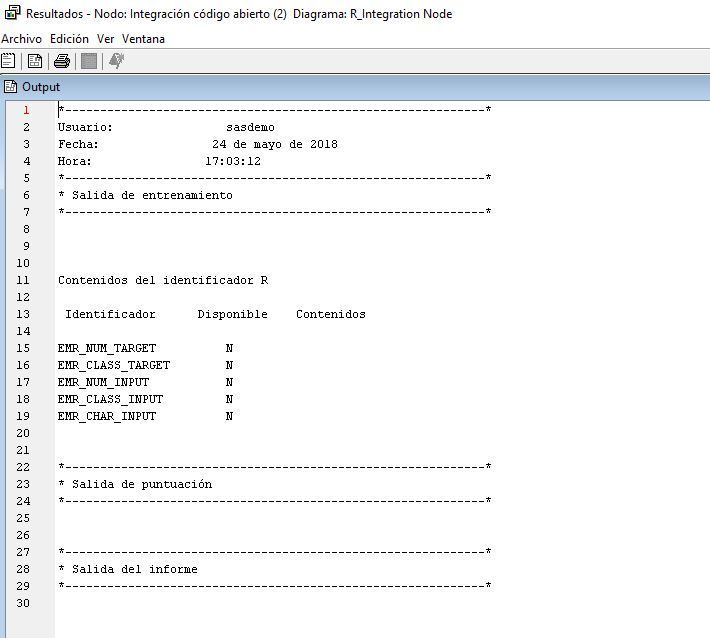 No expected graph in the Results Window...
I don't know what else to do, what I am missing to configurate.
Thanks in advance, for the tips you could provide.