- Home
- /
- Programming
- /
- Programming
- /
- Re: Keyboard macros and Abbreviations
- RSS Feed
- Mark Topic as New
- Mark Topic as Read
- Float this Topic for Current User
- Bookmark
- Subscribe
- Mute
- Printer Friendly Page


- Mark as New
- Bookmark
- Subscribe
- Mute
- RSS Feed
- Permalink
- Report Inappropriate Content
Hi,
I am trying to create some custom abbreviations. For example I created one for the data step as follows
Abbreviation:
Data
Text to insert for abbreviation:
Data ;
Set ;
Run;
Question - When I insert the abbreviation, by default the cursor points at the end of the Run; statement. Is there a way that I can have the cursor point at some other location, may be, at the end of the word data?


- Mark as New
- Bookmark
- Subscribe
- Mute
- RSS Feed
- Permalink
- Report Inappropriate Content
@erimagoyal wrote:
Hi,
I am trying to create some custom abbreviations. For example I created one for the data step as follows
Abbreviation:
Data
Text to insert for abbreviation:
Data ;
Set ;
Run;
Question - When I insert the abbreviation, by default the cursor points at the end of the Run; statement. Is there a way that I can have the cursor point at some other location, may be, at the end of the word data?
In EG, you have Cursor Controls available while you define a keyboard macro; you can use a series of those to put the cursor where you want it after insertion of text.


- Mark as New
- Bookmark
- Subscribe
- Mute
- RSS Feed
- Permalink
- Report Inappropriate Content
Hi @erimagoyal,
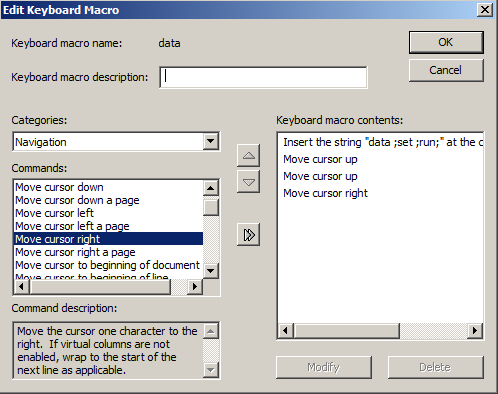
Yes, you can add navigation commands to the keyboard macro in order to move the cursor where you want.
- Menu Tools --> Keyboard Macros --> Macros...
- Select your Abbreviation in the list
- Click "Edit..." button
- Select "Navigation" from drop-down list "Categories"
- Select the desired command for cursor movement (e.g. "Move cursor up") and press the double-arrow button to insert it.
- Repeat step 5 with the same or other commands, as needed.

Call for content now open!
It's your turn to help shape SAS Innovate 2027. Share your expertise and inspire the SAS community.
Learn how use the CAT functions in SAS to join values from multiple variables into a single value.

Find more tutorials on the SAS Users YouTube channel.
SAS Training: Just a Click Away
Ready to level-up your skills? Choose your own adventure.
-
2 replies
-
06-27-2018 06:15 PM
-
2375 views
-
1 like
-
3 in conversation
-


