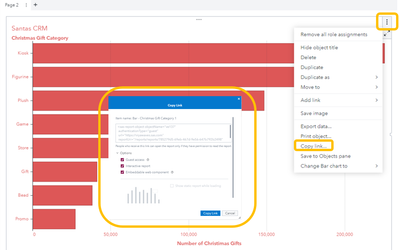
Step 1: Export Your SAS Visual Analytics Object
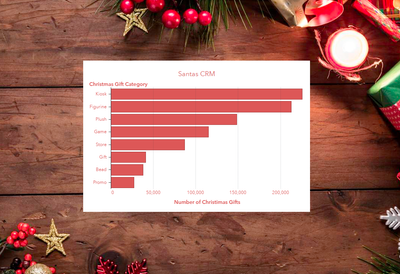
Step 2: Embed the object in you CRM system (here html code)
<!DOCTYPE html>
<html>
<head>
<style>
body {
background-image: url('julebaggrund.jpg');
}
</style>
<script async src="https://unpkg.com/@sassoftware/va-report-components@0.11.0/dist/umd/va-report-components.js"></scrip...>
</head>
<body>
<sas-report-object
style="width:600px; height: 400px; margin:0 auto; padding: 300px 0; text-align:center"
objectName="ve137"
authenticationType="guest"
reportUri="/reports/reports/785279d5-69eb-467d-9e56-647b792b2498">
</sas-report-object>
</body>
</html>
For more information and inspiration see:
Happy Holidays
Got a question on the subject on linked in – posting Q&A here:
Questions: “On VA on SAS9, if you want to embed objects in a standard HTML page, it is a requirement that you configure x-frame options server-side on the applications layer. Is this different on VA on Viya or do you still have to configure server-side?”
Answer: “Using VA SDK, the Viya server needs to be configured. The link below describes what needs to be done. See under section “SAS Viya Setup”
https://developer.sas.com/sdk/va/docs/getting-started/#installation
Please Note: These configuration steps also applies for the iFrame approach.”
Nearly 200 sessions are now available on demand in the Innovate Hub.
Watch Now →