I presented How Do I Debug SAS® DATA Step? in a recent Ask the Expert event. I covered how to use the SAS DATA Step Debugger to save time and become a more productive programmer.

Watch the webinar
You will learn:
- What the SAS DATA Step Debugger is and where to find it.
- How to use the debugger to set breakpoints, watch values and solve logic problems.
- The limitations of the debugger.
The questions from the Q&A segment held at the end of the webinar are listed below and the slides from the webinar are attached.
Q&A
Does the Debugger exist in all flavors of SAS Studio or just Viya SAS Studio?
I believe it's just in SAS Studio for SAS Viya, so it doesn't. It does not exist in the version 9 flavor of SAS Studio (version 3.8).
Will you be able to explain how to use this in SAS Display Manager? And will there be materials about this to read later?
I recommend watching this Boston Area SAS Users Group (BASUG) webinar, where Paul Dorfman (@hashman ) talked about and demo-ed how DATA Step works. It is also in SAS documentation. Within display manager, if you are looking at your SAS code, you add the slash debug to the end of your first DATA Step statement. When you run it, it's going to bring up the debugger (example below).
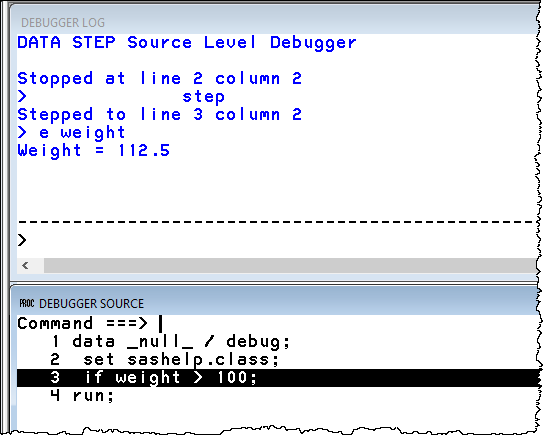 The debugger in SAS for Windows. Not point-and-click.
In EG how do you use debugger? / Does debugger work in SAS Enterprise Guide the same as Studio?
As I shared in my demo, they look very similar. The main differences are the shortcut keys, which are different in your browser than in SAS Enterprise Guide, which is a desktop tool. But they both can step through code, both feature the watch window that shows you all the variables that are being managed in the in the program data vector, and both have a console command line that allows you to execute debugger commands directly from within. Other than one in your browser and one on the desktop, they work pretty much the same.
Does SAS Studio On demand for Academics have the debugger tool?
The debugger is not available there currently. That environment uses SAS Studio v3.8.
Can you use the debugger in Macro code?
No, you can't use the debugger in macro code. If you must debug a DATA step that's within macro code, extract the DATA Step that you are looking at outside of the context of a macro. Then you may need to resort to the macro debugging techniques, which we didn't really cover here, but I know have been covered in other Ask the Expert webinars.
If there is time, could you show how to start the debugger in SAS Studio?
Use the Debug Icon to toggle whether the Debugger is enabled or not. Once it's enabled, I can just click the little bug icon here to get started and then it comes up so it's that simple.

There are also some keyboard shortcuts. If you want to learn more about it, they are in the lower right of the screen in SAS Viya. It's very subtle. If I click on keyboard shortcuts, I can see this help here. It shows me all the shortcuts and the one for debug is Control + Shift + D.

Does debugger work with PROC SQL?
No, it doesn't. As I mentioned, it's a DATA Step debugger only. The debugger doesn't work with PROC Steps in general but PROC SQL specifically. PROC SQL is processed in a different way. It does not process line by line what we're submitting. PROC SQL is optimized and internalized in a way to give you what you want. Why PROC SQL isn’t applicable for the debugger? DATA Step allows you to tell SAS how to do something, exactly how to do the task you want, like manage, filter, or manipulate your data. SQL allows you to express what you want as an outcome, but it doesn't give you control over how it does it. If you want that control, you use DATA Step. If you want the outcome, however SAS wants to do it, you use PROC SQL. It is especially important when working with databases, since that SQL gets passed to a database for processing. Debugging this in the SAS context doesn't make as much sense there.
Where can we learn more about the Hash Object?
I think there's a whole Ask the Expert webinar about Hash Object. That's probably a great place to start. There's also lots of papers and blogs about that too.
Can we see the lines that are already moved to output dataset during the usage of "IF" statements?
I don't think you can see the actual output data set as you're building it, if that's the question. For example, if you're expecting 20 records to be produced and you get through the 5th iteration, you can’t see the data set in progress.
Is there a way to filter for the variables of interest? I have a lot of variables in a dataset, and I only want to see a few of them in the debugger. Since these variable names start with different letters, I must scroll all the way up and down to see the values.
There's not a way to filter what appears in the watch window. You're going to see whatever the variables are. I recommend spending some time learning those console commands, because if you want to know the value of a specific variable, use like of examine variable-name. The console commands can save you a lot of time there if you find the point and click or scrolling to be a burden when you have a large number of variables.
If during debugging, you discover code that is not producing the expected outcome, can you change that code in the debugger or do you need to close the debugger and fix the actual code?
You cannot change the code as you debug it. You can change the conditions. For example, you can set values in the debugger that may force different code paths, but you cannot change the actual code that is running. The DATA Step has a compile phase and a runtime phase. If you change the code, the debugger is looking only at the runtime phase. It's already been compiled by SAS when you submit it. You need to get out of the debugger to make your change in the in the actual code editor and then relaunch the debugger to get back to where you were. But again, use those console commands and watch your breakpoint conditions to help you get back to where you were before so that you're not spending a lot of time navigating through the debugger. You can set breakpoints based on conditions. For example, when value greater than x, break. Now your code will run along happily until you hit that condition. If you know your code has trouble in a particular set of values, for example, you can set these conditional breakpoints that will pause execution when that condition is hit.
Can you go back to the previous step in the debugger?
Yes, you can. If you are executing line by line and you want to execute a line that you did previously, you can move the actual execution line to wherever you want. You can use the GO command to move to a specific line or jump command to move to a specific area. And this works with lines numbers or labels if you use that in DATA Steps.
Learn More


