- Home
- /
- Programming
- /
- Enterprise Guide
- /
- Re: SAS EG program history/commit sometimes shows entire program repla...
- RSS Feed
- Mark Topic as New
- Mark Topic as Read
- Float this Topic for Current User
- Bookmark
- Subscribe
- Mute
- Printer Friendly Page


- Mark as New
- Bookmark
- Subscribe
- Mute
- RSS Feed
- Permalink
- Report Inappropriate Content
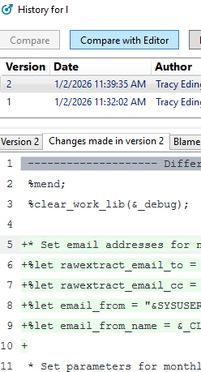
I have been using SAS EG program history for embedded programs for a while now. Usually it works as expected--when I add code to an existing program that has already been committed, the new code is highlighted green and the previous code is not highlighted (see screenshot below):
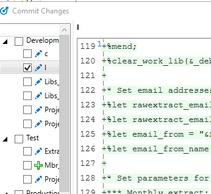
Instead of just highlighting changes, sometimes it shows a replacement of the entire program--all of the previous is highlighted red, and then the same code plus the new code is highlighted green, as if the program has been replaced entirely. Below is a screenshot of the same addition showing up as replacement of entire file (the top half of this commit shows all the previous code highlighted red):
Has anyone else had this issue, and have you found a way to make sure that only the new changes are highlighted? Thanks in advance for any help you can offer!
Accepted Solutions


- Mark as New
- Bookmark
- Subscribe
- Mute
- RSS Feed
- Permalink
- Report Inappropriate Content
Hi @tracyedinger , I'm just catching up with this and I'm going send you in a different direction.
The Program History feature in EG is convenient but limited. It's convenient because it's completely built-in, does not require any external Git integration and can help you maintain a history/revert capability for SAS programs that are embedded in the project file. It works by hosting a mini-Git repository inside of the project, which is self contained but not visible to any outside tools.
But, this falls short of the needs that many organizations have, where SAS code is an asset that should be maintained in official Git systems and repositories. For these needs, you would store the SAS programs as files outside of the project and simply reference them (like shortcuts) within the EG application. With EG v8 and later, many people manage their SAS programs without the need for a project. (Projects are still needed for tasks and queries though, as well as process flows.)
When using Git integration features, you install Git tools on the same machine as EG. You can then manage your SAS code projects in local repositories that you can sync with upstream repos. Teams can collaborate on code projects more easily, because the important code assets aren't locked in EGP files but are in folders of SAS code, with each developer working with their own cloned repo. Diffs can be seen in EG but also in lots of other standard tools that teams use to manage code.
This approach opens the possibilities for using other tools like VS Code and SAS Studio with the same code projects. Personally, I go between all of these tools for my work -- depending on the task/project.
This is not to excuse/explain away the behavior you're seeing in the Program History. Working with unreliable diffs is frustrating (and not expected). But in the long term, adoption of standard Git integration and managing code files may be a better benefit for the team.
See How do I use Git with my SAS projects? Q&A and webinar recording for some guidance about getting started with these techniques.


- Mark as New
- Bookmark
- Subscribe
- Mute
- RSS Feed
- Permalink
- Report Inappropriate Content
Assuming it is not a bug in EG then I suspect in those cases there are white space differences between the two versions. Perhaps one version had trailing spaces removed. Perhaps one version used CR+LF and the other just used LF as the end of line marker.
I have not used this EG feature, but based on other difference displays I have used check if EG has an option to ignore white space differences.
- Mark as New
- Bookmark
- Subscribe
- Mute
- RSS Feed
- Permalink
- Report Inappropriate Content
Thanks for the reply! In the example I posted, the only thing changed in the code was a copy/paste of the additional code, so there wouldn't have been any other changes to trailing spaces (if any) or end of line characters on the other lines.
One other thing I've noticed when I click on commit is that some of the programs on all process flows show up as being completely replaced (everything highlighted red and then the same code in green) even though I have not made any changes to those programs. When I open those programs and click commit, sometimes the changes show up but sometimes SAS indicates there is no change to commit.
- Mark as New
- Bookmark
- Subscribe
- Mute
- RSS Feed
- Permalink
- Report Inappropriate Content
Copy and paste from where?
One annoying thing that SAS introduced with the "Enhanced" editor is that it preserves trailing spaces on the ends of lines. The old editor they had in Display Manager was better suited for code editing.
PS Don't place physical tab characters inside of program files. The bytes saved are not worth it. And ironically they make aligning the text harder. It you do want to include them then make sure they only appear at the beginning of the lines.
- Mark as New
- Bookmark
- Subscribe
- Mute
- RSS Feed
- Permalink
- Report Inappropriate Content
This project will be a demo of version control/program history, and I'm using another SAS EG project as the source of the code and changes. The files in the demo project were copied and pasted from the original project. The changes were copied and pasted from that project or from the demo project (I've recreated this program several times in attempting to figure out what's going on). Notepad++ file compare shows no differences between the two versions, and both have <CR><LF> line endings.
Thanks for the tip about tabs! Do you think replacing them with spaces works better?

- Mark as New
- Bookmark
- Subscribe
- Mute
- RSS Feed
- Permalink
- Report Inappropriate Content
- Mark as New
- Bookmark
- Subscribe
- Mute
- RSS Feed
- Permalink
- Report Inappropriate Content
- Mark as New
- Bookmark
- Subscribe
- Mute
- RSS Feed
- Permalink
- Report Inappropriate Content
I'll post the solution on this thread once we find it.
- Mark as New
- Bookmark
- Subscribe
- Mute
- RSS Feed
- Permalink
- Report Inappropriate Content
Hi @tracyedinger , I'm just catching up with this and I'm going send you in a different direction.
The Program History feature in EG is convenient but limited. It's convenient because it's completely built-in, does not require any external Git integration and can help you maintain a history/revert capability for SAS programs that are embedded in the project file. It works by hosting a mini-Git repository inside of the project, which is self contained but not visible to any outside tools.
But, this falls short of the needs that many organizations have, where SAS code is an asset that should be maintained in official Git systems and repositories. For these needs, you would store the SAS programs as files outside of the project and simply reference them (like shortcuts) within the EG application. With EG v8 and later, many people manage their SAS programs without the need for a project. (Projects are still needed for tasks and queries though, as well as process flows.)
When using Git integration features, you install Git tools on the same machine as EG. You can then manage your SAS code projects in local repositories that you can sync with upstream repos. Teams can collaborate on code projects more easily, because the important code assets aren't locked in EGP files but are in folders of SAS code, with each developer working with their own cloned repo. Diffs can be seen in EG but also in lots of other standard tools that teams use to manage code.
This approach opens the possibilities for using other tools like VS Code and SAS Studio with the same code projects. Personally, I go between all of these tools for my work -- depending on the task/project.
This is not to excuse/explain away the behavior you're seeing in the Program History. Working with unreliable diffs is frustrating (and not expected). But in the long term, adoption of standard Git integration and managing code files may be a better benefit for the team.
See How do I use Git with my SAS projects? Q&A and webinar recording for some guidance about getting started with these techniques.
- Mark as New
- Bookmark
- Subscribe
- Mute
- RSS Feed
- Permalink
- Report Inappropriate Content
Hi Chris! Sorry for the delayed response. I agree that an external git repository is the best way to go. I was trying to get embedded program history working because I thought it would be easier for analysts without a technical background. After trying a number of things to get program history to work as expected, I am switching directions and plan to implement git. Thank you for your informative response!


- Mark as New
- Bookmark
- Subscribe
- Mute
- RSS Feed
- Permalink
- Report Inappropriate Content
Hi,
The "white space" highlighted by @Tom could be down to editor settings which optionally allow the tab character to be replaced by space characters. So if another developer uses the tab character and your editor settings replace them with spaces, then this could be the source of the highlighted differences. You can check & compare your editor settings to see if it is the root cause.
Thanks & kind regards,
Amir.
- Mark as New
- Bookmark
- Subscribe
- Mute
- RSS Feed
- Permalink
- Report Inappropriate Content
Thanks, Amir! I am the only developer working on this project; it is supposed to be a source-control demo for other SAS developers at my company. I tried starting the project again and removed and then replaced the indentations to make sure they were tabs and not spaces; this did not help.
- Mark as New
- Bookmark
- Subscribe
- Mute
- RSS Feed
- Permalink
- Report Inappropriate Content
See if it is possible to save the two version as separate files and compare them using some other tool to see if in fact there are differences in those lines.

Call for content now open!
It's your turn to help shape SAS Innovate 2027. Share your expertise and inspire the SAS community.
Check out this tutorial series to learn how to build your own steps in SAS Studio.
Find more tutorials on the SAS Users YouTube channel.
SAS Training: Just a Click Away
Ready to level-up your skills? Choose your own adventure.
-
12 replies
-
01-02-2026 05:49 PM
-
2993 views
-
6 likes
-
5 in conversation
-


